Getting Started with AskArchie
What is AskArchie?
AskArchie is a Cloud Standards Platform that replaces manual infrastructure provisioning with governed, versioned, deployable blueprints. Your team deploys production-ready infrastructure from a form — not from raw Terraform or Pulumi code.
Signing Up
Visit app.askarchie.io and click Sign In. You can authenticate with:
- GitHub — recommended for engineering teams
- Google — works with any Google Workspace account
- Microsoft — Enterprise SSO via Azure AD
SAML/Okta support is coming soon.
No credit card required. The free tier includes 3 AI blueprint generations, unlimited fork + governance, and full deploy/destroy lifecycle.
The Onboarding Wizard
After your first sign-in, Archie launches a 4-step setup wizard. Each step is optional — skip anything and come back later.
Step 1: Welcome
Archie greets you by name and explains the setup takes about 5 minutes. Click Get Started to begin.
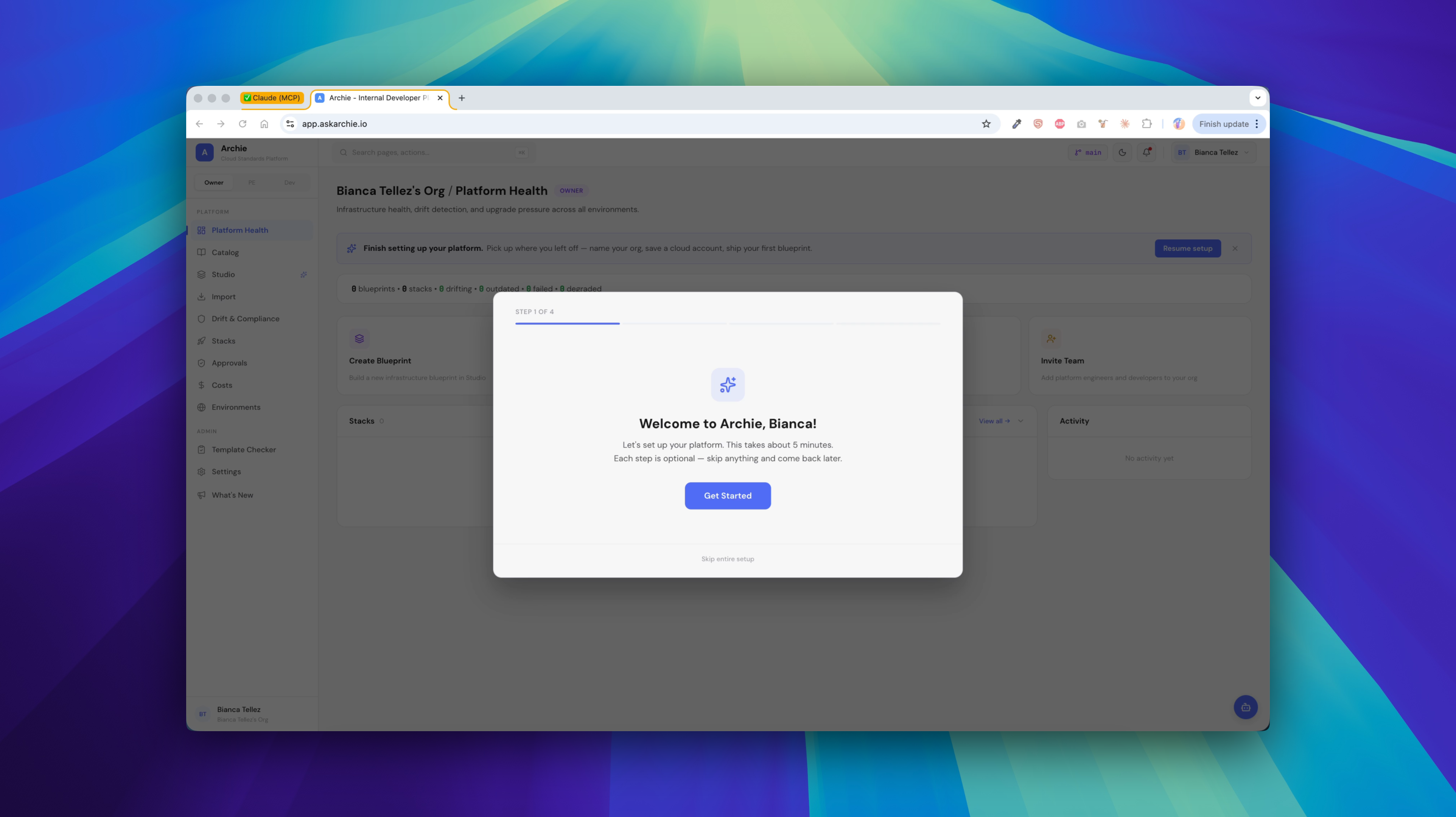 Onboarding wizard welcome screen
Step 2: Name Your Organization
Type your company or team name. This is how your workspace appears to team members. Below the input, Archie explains the three roles:
| Role | What they can do |
|---|---|
| Owner (you) | Full access, manage org, invite team |
| Platform Engineer | Blueprints, governance, prod approvals |
| Developer | Deploy from the approved catalog |
Step 3: Connect a Cloud Account
Choose your cloud provider: AWS, Azure, or GCP. You can connect additional clouds later from Settings → Cloud Accounts.
For AWS, you have two credential strategies:
- Save as Cloud Account (recommended) — encrypt credentials once, pick from a dropdown on every deploy
- On-demand — paste credentials each time (best for one-off tests)
Auto-Deploy Role (AWS)
The recommended path creates an IAM role in your AWS account automatically:
- Paste temporary AWS access keys (one-time use, discarded after role creation)
- Review the trust policy — Archie shows the exact Account ID and External ID
- Click Deploy 2 resources — creates an IAM Policy + IAM Role
- Archie confirms: "Connected to your AWS account" with the Role ARN
The role uses least-privilege permissions — only what's needed to deploy Archie's starter templates. You can tighten it further from the AWS console.
IAM is global. The region field on this screen is the default deploy region, not where the role lives. You can override it per deployment.
Step 4: Your First Blueprint
Three paths to create your first blueprint:
| Path | Best for | Badge |
|---|---|---|
| Fork a starter | Quick start with production-ready defaults | EASIEST |
| Generate with AI | Describe what you need in plain English | 3 FREE |
| Import from Git | Bring your existing Terraform/Pulumi modules | — |
Clicking "Fork a starter" takes you to the Starter Library with 89+ templates across AWS, Azure, GCP, and Kubernetes.
After Onboarding
Once you complete the wizard, contextual banners guide your next steps:
- "Pick a starter and click Fork" → browse the library, fork a template
- "Now set governance — lock fields your team shouldn't change" → open the blueprint editor
- "Last step — deploy your first stack" → click Deploy and go live
Guest View
Users who haven't signed in can still browse Archie with sample data:
- Platform Health — mock dashboard with upgrade pressure, drift alerts, activity feed
- Catalog — browse all 89 starter templates (lock icon on gated features)
- What's New — changelog
All other pages show a blurred preview with a "Sign up — free" modal.
What's Next
- Cloud Accounts — connect AWS, Azure, and GCP
- Blueprints — browse, fork, and customize templates
- Deploying — deploy your first stack